Quick Answer
When an LG TV says Wi-Fi is turned off, first unplug the TV for 60 seconds and restart your router. Then go to Settings, General or Network, Wi-Fi Connection and switch Wi-Fi on, set the date and time to automatic, disable Quick Start+, and update the software. If the Wi-Fi option is missing entirely, the TV’s Wi-Fi module may have failed.
Key Takeaways
- A full power cycle of the TV and router fixes many LG webOS Wi-Fi glitches.
- Quick Start+ keeps the TV in a low-power standby that can carry a network glitch over between sessions.
- Wrong date and time settings can block secure connections to LG servers and apps.
- A wired Ethernet connection is the best way to install updates while Wi-Fi is down.
- If no wireless networks appear after a reset, the Wi-Fi module or its cable may need service.
The “Wi-Fi is turned off” message on LG smart TVs usually appears after a power outage, a software update or a router change. It can mean the setting really is off, the TV lost track of its wireless hardware, or the network software needs a reset. These fixes go from fastest to most involved, and menu names may vary slightly by webOS version.
Why Does My LG TV Say Wi-Fi Is Turned Off?
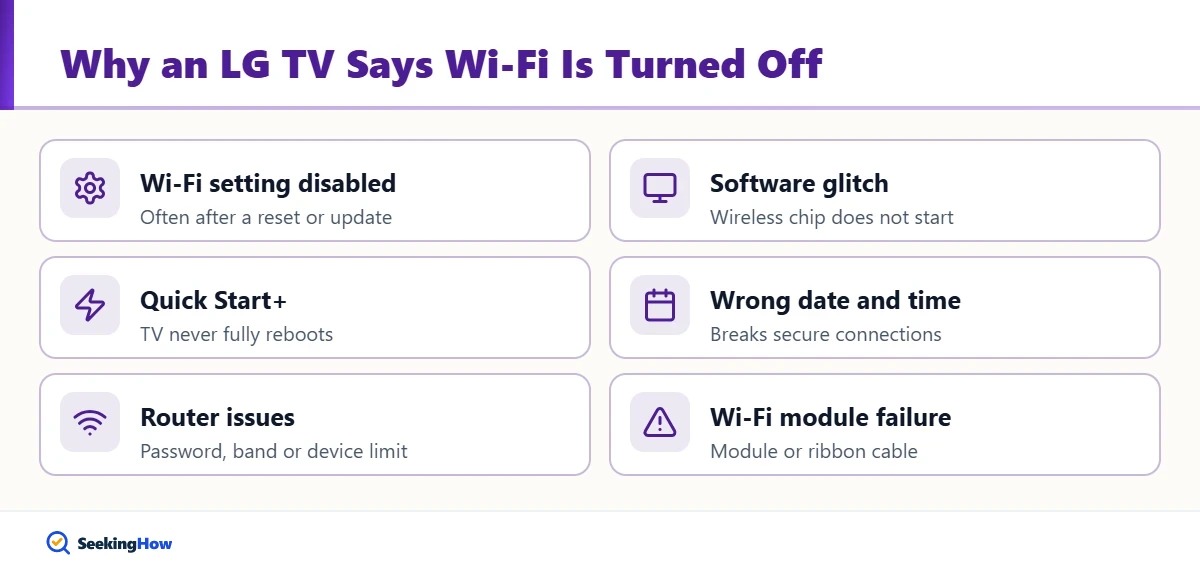
- The Wi-Fi setting is disabled in the network menu, sometimes after a reset or update.
- A software glitch keeps the wireless chip from starting, often fixed by a full power cycle.
- Quick Start+ keeps the TV in a low-power state, so it never fully reboots.
- Incorrect date and time can break secure connections to apps and LG’s servers.
- Router issues, such as a changed password, an unsupported band or too many connected devices.
- Hardware failure of the internal Wi-Fi module or its ribbon cable.
Which Fix Should You Try First?
| What you see | Likely cause | Best fix |
|---|---|---|
| Wi-Fi toggle is off | Setting disabled | Turn Wi-Fi on in Network settings |
| Networks listed but will not connect | Password, band or router issue | Restart router, re-enter password, try 2.4 GHz |
| Connected but “no internet” | DNS or date/time problem | Set auto time, try a different DNS |
| Message returns after every power-on | Quick Start+ or software glitch | Disable Quick Start+, update software |
| No Wi-Fi option or networks at all | Wi-Fi module fault | Factory reset, then service |
How To Fix an LG TV That Says Wi-Fi Is Turned Off
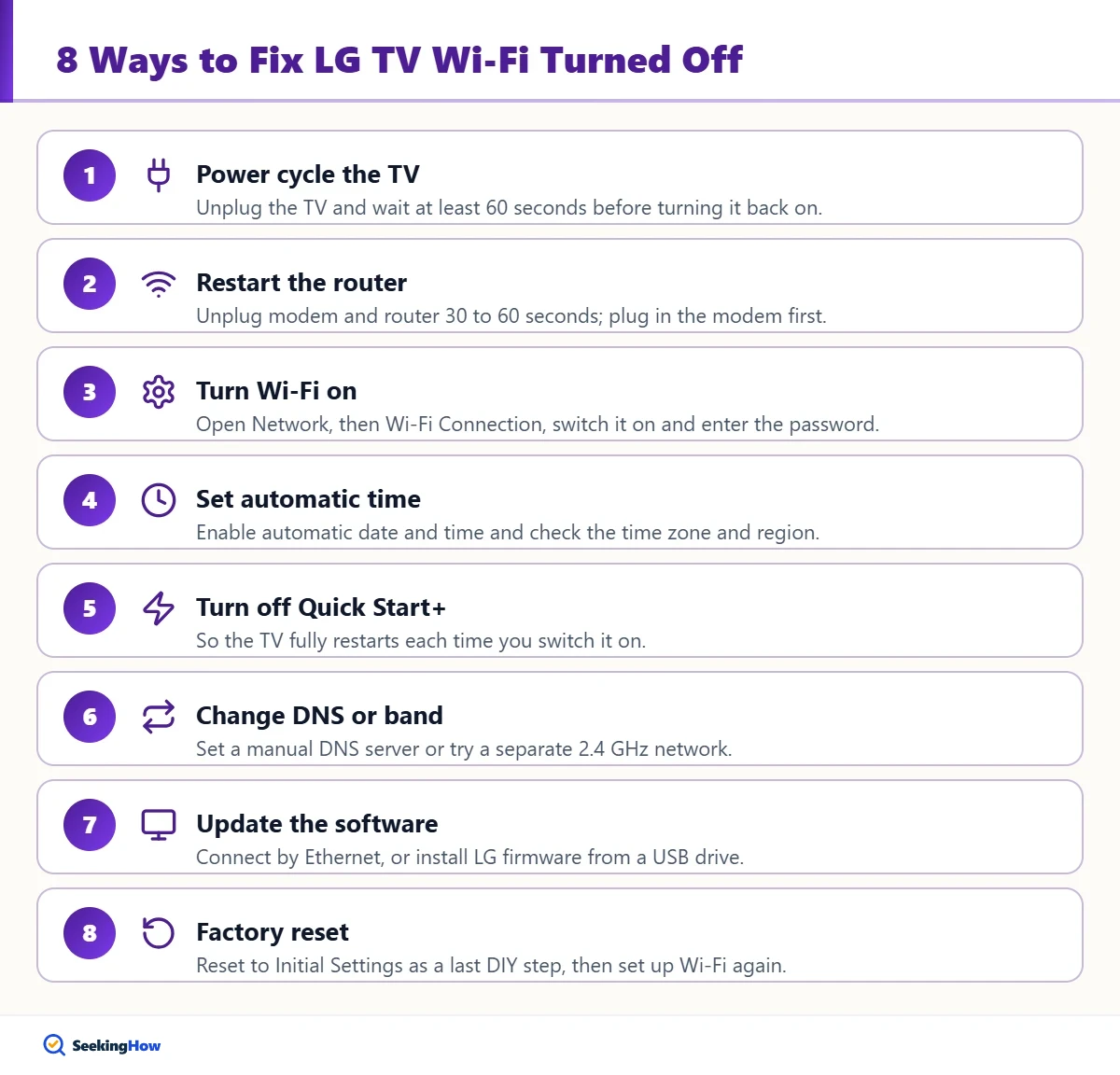
Step 1: Power cycle the TV
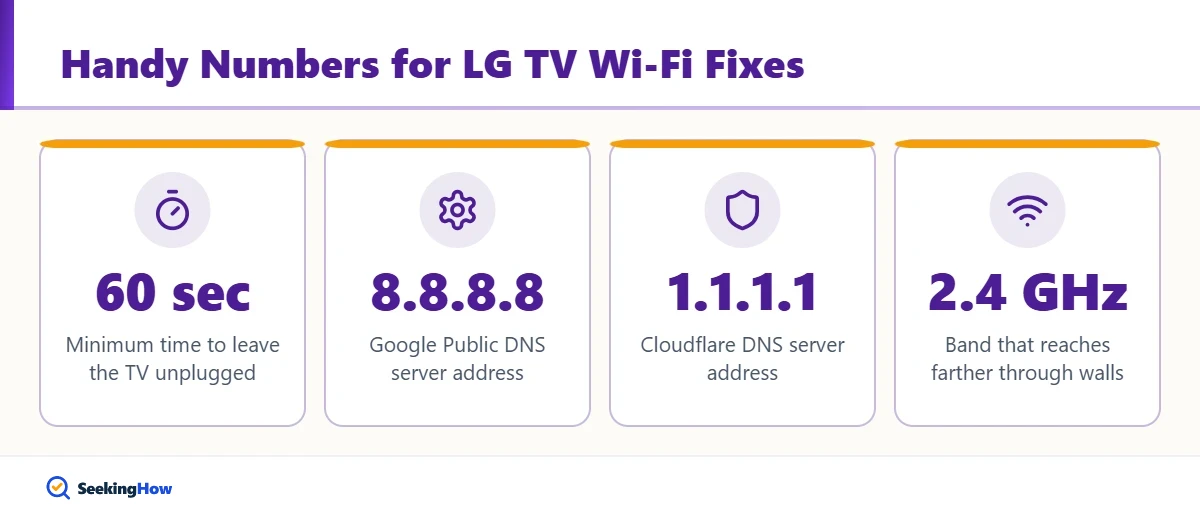
Turn the TV off, unplug it from the wall and wait at least 60 seconds. Some people also hold the power button on the TV itself for about 30 seconds while unplugged to drain residual power. Plug it back in and turn it on; this clears many temporary network faults.
Step 2: Restart your router and modem
Unplug the router and modem for 30 to 60 seconds, plug the modem in first, then the router. Wait until the lights show a stable connection. Confirm that other devices such as a phone or laptop can get online over the same network.
Step 3: Turn Wi-Fi on in network settings
Press the Settings button on the remote, then go to All Settings and open Network (on newer models it is under General, then Network). Select Wi-Fi Connection, switch it on, choose your network and enter the password. Remember that passwords are case-sensitive.
Step 4: Set the date and time automatically
Go to Settings, General, System or Date and Time, depending on your model, and enable automatic date and time. A clock that is far off can make secure connections fail. Also check the time zone and region match where you live.
Step 5: Turn off Quick Start+
Find Quick Start+ under Settings, General (or General, Devices, TV Management on newer webOS). Turn it off so the TV fully restarts each time you switch it on. This can stop the Wi-Fi error from coming back after standby.
Step 6: Change the DNS or band
In Wi-Fi Connection, open Advanced Wi-Fi Settings and choose Edit to set a manual DNS server, such as Google Public DNS 8.8.8.8 or Cloudflare 1.1.1.1. If your router broadcasts 2.4 GHz and 5 GHz under one name, try a separate 2.4 GHz network, which reaches farther through walls.
Step 7: Update the TV software
Connect the TV to the router with an Ethernet cable, then go to Settings, General or Support, Software Update and check for updates. If you cannot connect at all, LG’s support website offers firmware downloads by model number that you can install from a USB drive, following LG’s instructions exactly.
Step 8: Reset to factory settings
As a last DIY step, use Settings, General or Support, Reset to Initial Settings. This erases apps, sign-ins and picture settings, so note your account details first. After the reset, set up Wi-Fi again during the setup wizard.
Tip: If you see a Wi-Fi network list but the TV still says it is off, move the router closer or temporarily use your phone’s hotspot. If the TV connects to the hotspot, the problem is your router or its settings, not the TV.
What If Your LG TV Has No Wi-Fi Option at All?
If the Wi-Fi menu is grayed out, missing or shows no networks even after a factory reset and a software update, the internal Wi-Fi module or the cable that connects it to the main board has likely failed. Some owners report that this follows a power surge or overheating, but the only way to know is a diagnosis.
Contact LG customer support with your model and serial numbers, which are on the label at the back of the TV and in Settings under Support or About This TV. If the TV is under warranty, LG will advise on repair. Opening the TV yourself can void the warranty and exposes you to high-voltage components, so leave internal repairs to an authorized technician.
Alternatives While Wi-Fi Is Down
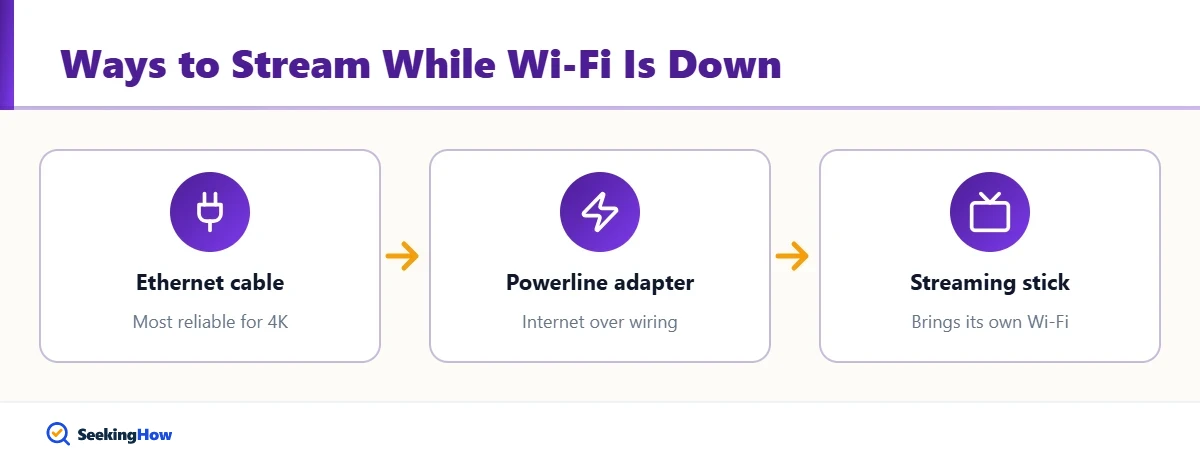
- Ethernet cable: The most reliable connection for streaming, especially for 4K content.
- Powerline adapter: Sends internet through your home’s electrical wiring when the router is far away.
- Streaming stick: A Roku, Fire TV, Chromecast or Apple TV plugged into HDMI brings its own Wi-Fi radio and apps.
How Do You Prevent LG TV Wi-Fi Problems?
Keep the TV software updated, use a surge protector, and leave enough space around the TV for ventilation. Place the router in an open, central spot rather than inside a cabinet. When you change your router or its password, update the TV’s connection right away so it does not keep retrying an old network.
Frequently Asked Questions
How do I turn on Wi-Fi on my LG TV?
Press Settings on the remote, open All Settings, then Network or General and Network. Select Wi-Fi Connection, switch it on, pick your network and enter the password. Menu names vary slightly by webOS version, so check your model guide if the path differs.
Why does my LG TV keep disconnecting from Wi-Fi?
Common causes include weak signal, router band steering, Quick Start+ standby, outdated software or DNS issues. Move the router closer, try a 2.4 GHz network, disable Quick Start+, update the software and set a manual DNS server.
Can I fix the LG TV Wi-Fi module myself?
It is not recommended. Replacing the module means opening the TV, which can void the warranty and expose you to high-voltage parts. Contact LG support or an authorized repair center with your model and serial numbers for diagnosis.
Will a factory reset fix LG TV Wi-Fi?
A factory reset fixes many software-related Wi-Fi problems because it clears corrupted network settings. It also erases apps, sign-ins and preferences. If Wi-Fi still does not appear after a reset and software update, the hardware likely needs service.
How do I update my LG TV without Wi-Fi?
Connect the TV to your router with an Ethernet cable and run Software Update from the settings menu. Alternatively, download the firmware for your exact model from LG support onto a USB drive and follow the official installation instructions.