
Quick Answer
To reset a Tactacam Reveal camera, slide the power switch to Setup, then use a paperclip to press and hold the Reset button on the bottom of the camera, inside the door, for about 10 seconds. The Tactacam Reveal powers off, reboots and re-syncs with the Reveal app in a few minutes. Try a simple power cycle first, and never reset while the camera is uploading.
Key Takeaways
- Tactacam’s official hard reset is done in Setup mode by holding the pinhole Reset button about 10 seconds.
- The Reset button sits on the bottom of the camera, inside the door, and needs a paperclip.
- A hard reset fixes wrong dates and times, frozen lights and cameras that stop checking in.
- Camera settings live in the Tactacam Reveal app and sync back after the camera reconnects.
- If the camera stops taking photos, check for a full SD card before resetting anything.
Most Tactacam Reveal problems, from a wrong time stamp to a camera that quit sending photos, clear up after a restart. This guide explains how to reset a Tactacam Reveal camera the way Tactacam’s support team recommends, plus the battery, SD card and signal checks to do first so you don’t reset for nothing.
What You’ll Need
- A straightened paperclip or SIM-eject pin
- The Tactacam Reveal app signed in to your account
- Fresh AA batteries (12 for most Reveal models; lithium recommended in cold weather) or a charged external 12V power source
- A Class 10, U3 SD card from a reputable brand such as SanDisk, Lexar or Tactacam (optional; many Reveal models run without one)
- A flashlight to read the switch and port labels inside the door
Soft Reset or Hard Reset?
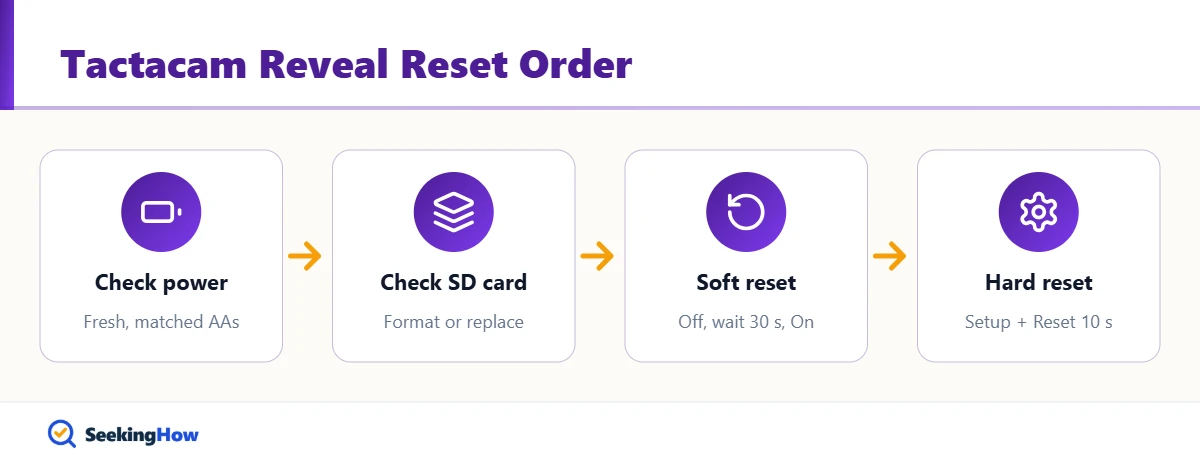
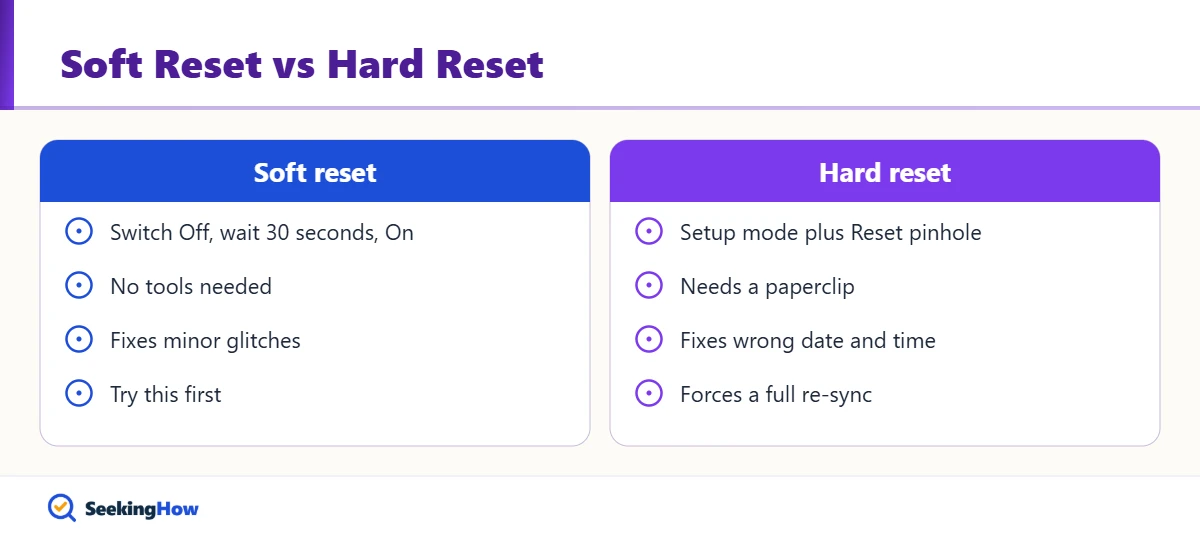
A soft reset is a power cycle: switch the camera Off, wait 30 seconds, and switch it back On. A hard reset uses the Reset button and forces a full reboot and re-sync with Tactacam’s server. Start with the soft reset; most people find it fixes a camera that simply stopped checking in.
How To Reset a Tactacam Reveal Camera: Step-by-Step
Step 1: Check Power and the SD Card First
Open the Reveal app and look at battery level and the last check-in time. Weak or mixed batteries cause random reboots, and a full SD card stops the camera from taking images, so replace all batteries at once with the same type and format or swap the card before resetting.
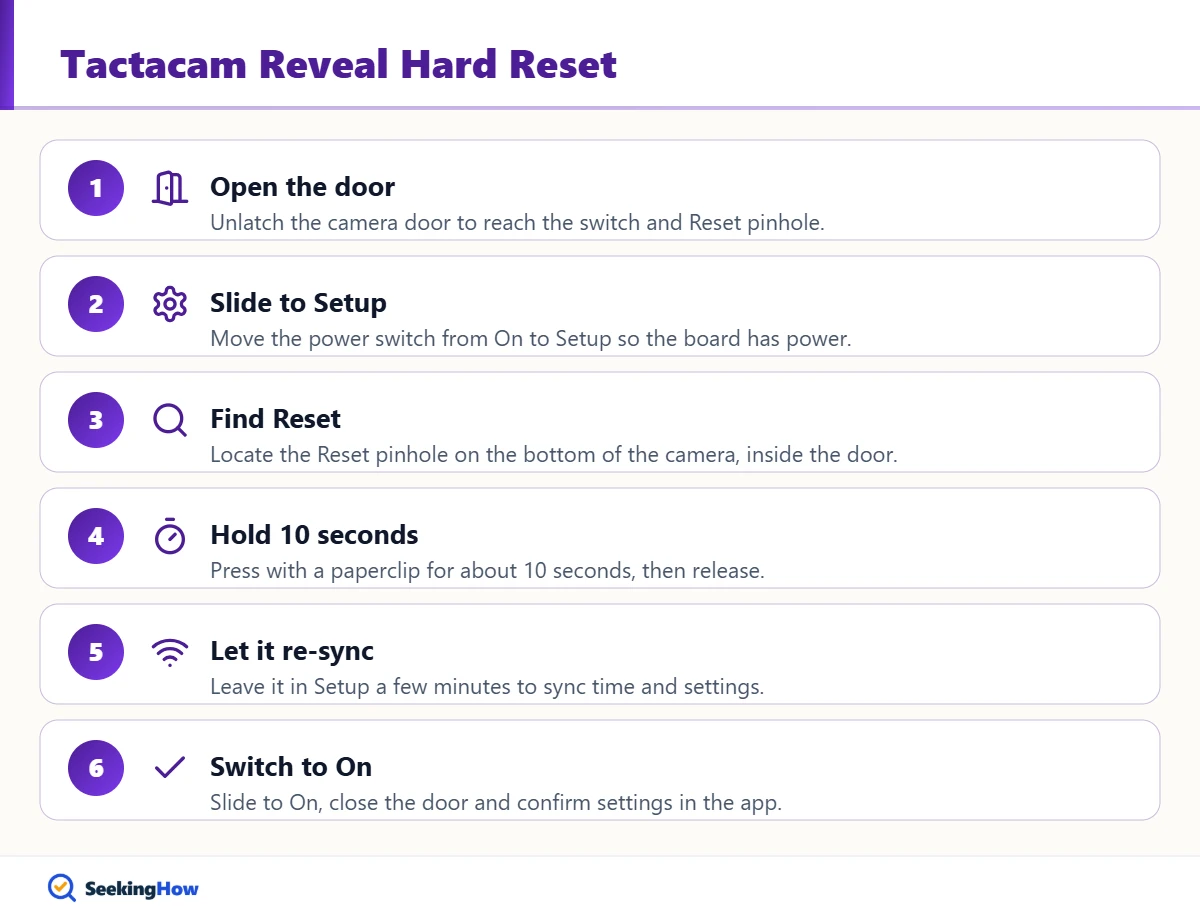
Step 2: Open the Door and Slide the Switch to Setup
Unlatch the camera door and move the power switch from On to Setup. Tactacam’s hard reset instructions start in Setup mode; pressing Reset while the switch is Off does nothing because the board has no power.
Step 3: Find the Reset Button
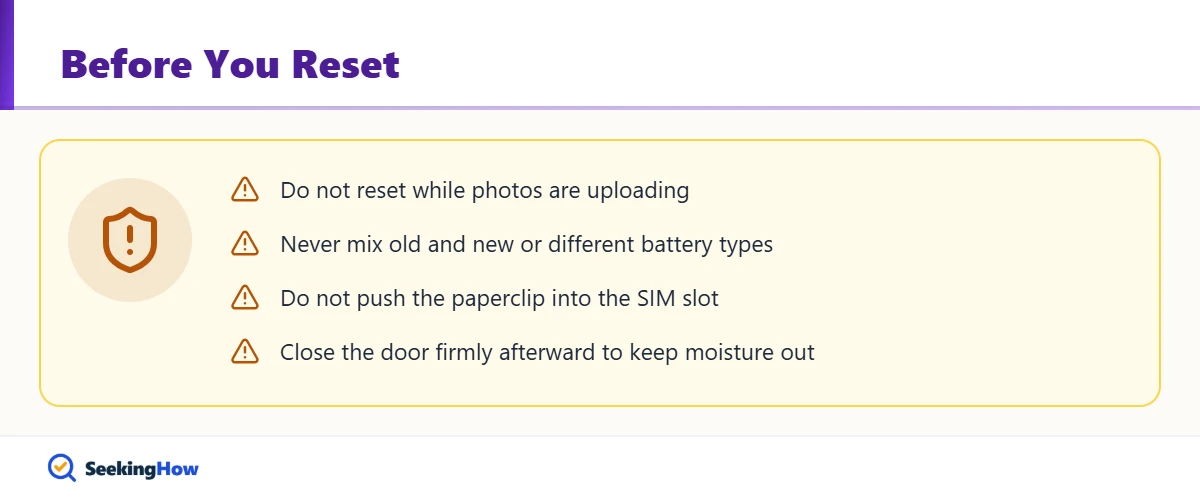
Look on the bottom of the camera body, inside the door, for a small pinhole labeled Reset. Do not confuse it with the USB port or the SIM slot; pushing a paperclip into the SIM tray can dislodge the SIM card.
Step 4: Hold Reset for About 10 Seconds
Insert the paperclip until you feel a soft click and hold it for about 10 seconds, then release. The camera powers off and reboots. Releasing after one or two seconds is the most common mistake and usually produces only a partial restart.
Step 5: Let the Camera Re-Sync
Leave the camera in Setup for a few minutes so it can reconnect to the cellular network and sync time and settings from the server. Watch the signal light: in Tactacam manuals, solid red means no signal and rapid red blinking means the SIM is missing or not recognized.
Step 6: Switch to On and Confirm in the App
Slide the switch back to On, close the door firmly and check the app. Confirm the photo resolution, trigger delay, upload schedule and SD Loop settings, and verify the next photos carry the correct date and time.
Bottom line: Power cycle first, hard reset in Setup mode second, and contact Tactacam support if the problem returns after both.
Soft Reset vs Hard Reset at a Glance
| Method | Time | What it fixes | Best for |
|---|---|---|---|
| Soft reset (Off, wait 30 s, On) | 1 minute | Missed check-ins, minor glitches | First attempt every time |
| Hard reset (Setup + Reset 10 s) | 5 minutes including re-sync | Wrong date/time, frozen lights, stuck uploads | Problems a power cycle didn’t fix |
| Format SD card (app or camera) | 2 minutes | Camera stops taking photos, SD error light | Full or corrupted cards |
| Firmware update | Varies | Known bugs, image quality issues | Recurring problems after a reset |
If That Didn’t Work
Problem: The camera won’t power on at all. Cause: Dead or mixed batteries, or a corroded battery tray. Fix: Install a full set of fresh AAs of one type, check for corrosion, and try external 12V power if your model supports it.
Problem: The SD card light shows red. Cause: A bad, slow or incompatible card. Fix: Format the card in the app or camera, or replace it with a Class 10, U3 card from a recommended brand. Tactacam warns that low-end cards can produce unexpected results.
Problem: Solid red signal light after the reset. Cause: No cellular coverage where the camera is mounted. Fix: Move or raise the camera, aim it so the antenna is clear, and check coverage in the app before mounting again.
Problem: Photos still show the wrong time. Cause: The camera hasn’t synced with the server yet. Fix: Leave it in Setup with a signal for several minutes, then repeat the hard reset once. If it persists, contact Tactacam at support@tactacam.com.
Problem: The camera has power but takes no pictures. Cause: The switch was left in Setup, or the SD card is full with SD Loop off. Fix: Slide the switch to On and enable SD Loop. A similar workflow is covered in how to reset a Spypoint camera.
Safety and When To Call a Pro
Use a ladder or tree stand safety harness when taking down a camera mounted overhead, and never climb with the camera in your hand. Contact Tactacam support, (218) 282-5650 or support@tactacam.com, if the camera was submerged, shows internal condensation that won’t clear, or still fails to connect after two hard resets. Opening the housing beyond the battery and card compartment can damage the seals and may affect warranty coverage.
Prevention Tips
- Use lithium AAs in freezing weather; alkaline cells lose capacity fast in the cold.
- Enable SD Loop so a full card never stops photo capture.
- Install firmware updates from the Reveal app when Tactacam releases them.
- Check the camera’s signal bars before mounting it for the season.
Related Guides
- How to reset a Spypoint camera (cellular and standard)
- How to install a fish finder on a kayak
- How to change a Honeywell thermostat battery
Sources
- Tactacam Support: REVEAL X troubleshooting, wrong date and time (hard reset)
- Tactacam: REVEAL XB instruction manual (PDF)
- Tactacam Support: REVEAL Gen 1 manual
Frequently Asked Questions
Where is the reset button on a Tactacam Reveal?
The Reset button is a small pinhole on the bottom of the camera, inside the door. You need a paperclip or SIM pin to press it. Do not confuse it with the SIM card slot or USB port, which sit nearby on several Reveal models.
Does resetting a Tactacam Reveal delete my photos?
No, a hard reset reboots the camera rather than erasing the SD card or the photos already uploaded to the Reveal app. Photos in the cloud stay in your account. Only formatting the SD card erases images stored on the card itself.
Can I reset a Tactacam Reveal from the app?
No, the official hard reset requires physical access to the camera because you must press the Reset button with the switch in Setup. The app is used afterward to check settings, format the SD card and confirm the camera is checking in.
Why is my Tactacam Reveal showing the wrong date and time?
A wrong time stamp usually means the camera has not synced with the server. Tactacam recommends a hard reset in Setup mode, holding Reset about 10 seconds, then giving the camera time to sync. Contact support if new photos still show the wrong time.
Why did my Tactacam Reveal stop taking pictures?
The most common causes are a full SD card with SD Loop turned off, dead batteries, or the switch left in Setup. Format or replace the card, enable SD Loop, install fresh batteries and slide the switch to On before trying a reset.
What SD card does a Tactacam Reveal need?
Tactacam manuals call for a Class 10, U3 SD card, generally 32GB, from brands like Tactacam, Lexar or SanDisk. Low-end cards can cause errors. Several Reveal models work without a card, but a card adds local backup storage.
What does a solid red light mean on a Tactacam Reveal?
A solid red cellular signal light means the camera has no signal at its location. Rapidly blinking red points to a missing or unrecognized SIM. Move the camera to better coverage or reseat the SIM before resetting.