Quick Answer
To connect a soundbar to a TV without HDMI ARC, use a digital optical (TOSLINK) cable from the TV’s Optical Out port to the soundbar’s Optical In, then set the TV’s audio output to “Optical” and its digital format to PCM or Bitstream. Setup takes about 5 minutes. Bluetooth and analog 3.5 mm/RCA cables also work, but optical gives the best sound with the least lag.
Key Takeaways
- A digital optical (TOSLINK) cable is the best substitute for HDMI ARC on most TVs made since about 2008.
- Optical carries stereo PCM and compressed Dolby Digital or DTS 5.1, but not Dolby Atmos, Dolby TrueHD or DTS:X.
- Older TVs without optical can use a 3.5 mm headphone jack or red/white RCA “Audio Out” with a matching cable.
- Bluetooth is wireless and easy but can add noticeable lip-sync delay.
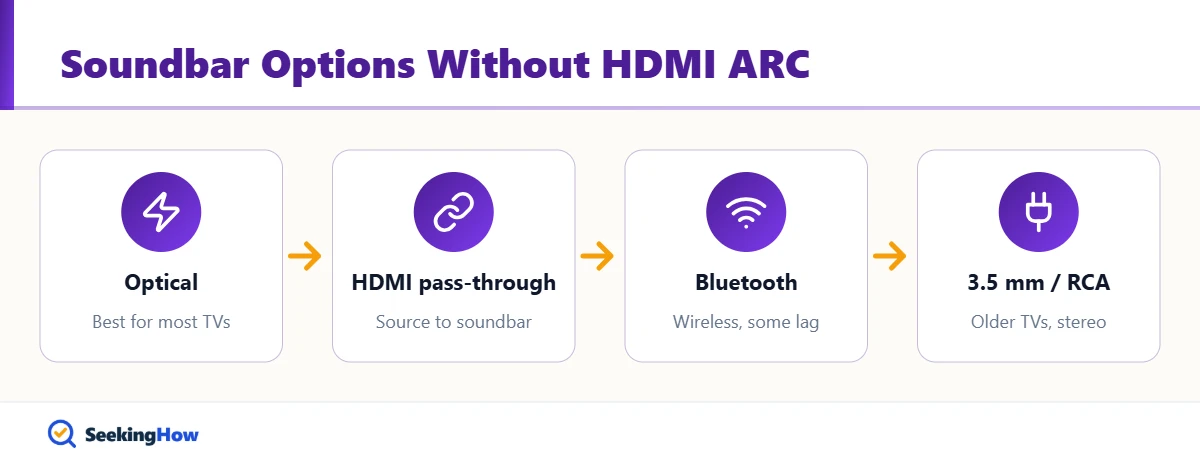
- Routing your streaming stick or cable box through the soundbar’s HDMI input bypasses the TV’s missing ARC entirely.
- After connecting, turn off the TV’s internal speakers so sound is not doubled or echoed.
Plenty of TVs, especially older or budget models, lack an HDMI ARC or eARC port, yet nearly all of them still have a way to send sound out. This guide shows how to connect a soundbar to a TV without HDMI ARC using optical, analog, Bluetooth or HDMI pass-through, plus how to fix the most common “no sound” problems afterward.
What You’ll Need
- Your TV and soundbar, plus both remotes
- Digital optical (TOSLINK) audio cable, 3 to 6 ft is typical (often included with soundbars)
- 3.5 mm-to-3.5 mm or 3.5 mm-to-RCA stereo cable, if your TV has only analog audio out (optional)
- High-speed HDMI cable, for the HDMI pass-through method (optional)
- HDMI audio extractor, for TVs and soundbars with no matching audio port (optional)
- A flashlight to read the small port labels on the back of the TV
First, Identify Your TV’s Audio Outputs
Look at the back or side panel of the TV for one of these labels: “Digital Audio Out (Optical)” with a small square port and a flap or red glow, “Audio Out” or a headphone symbol for a 3.5 mm jack, or red and white RCA jacks marked “Audio Out” (not “Audio In”). Then check the soundbar for the matching input. Most people find their TV has optical even when it lacks ARC, so start there.
How To Connect a Soundbar to a TV Without HDMI ARC: Step-by-Step (Optical)
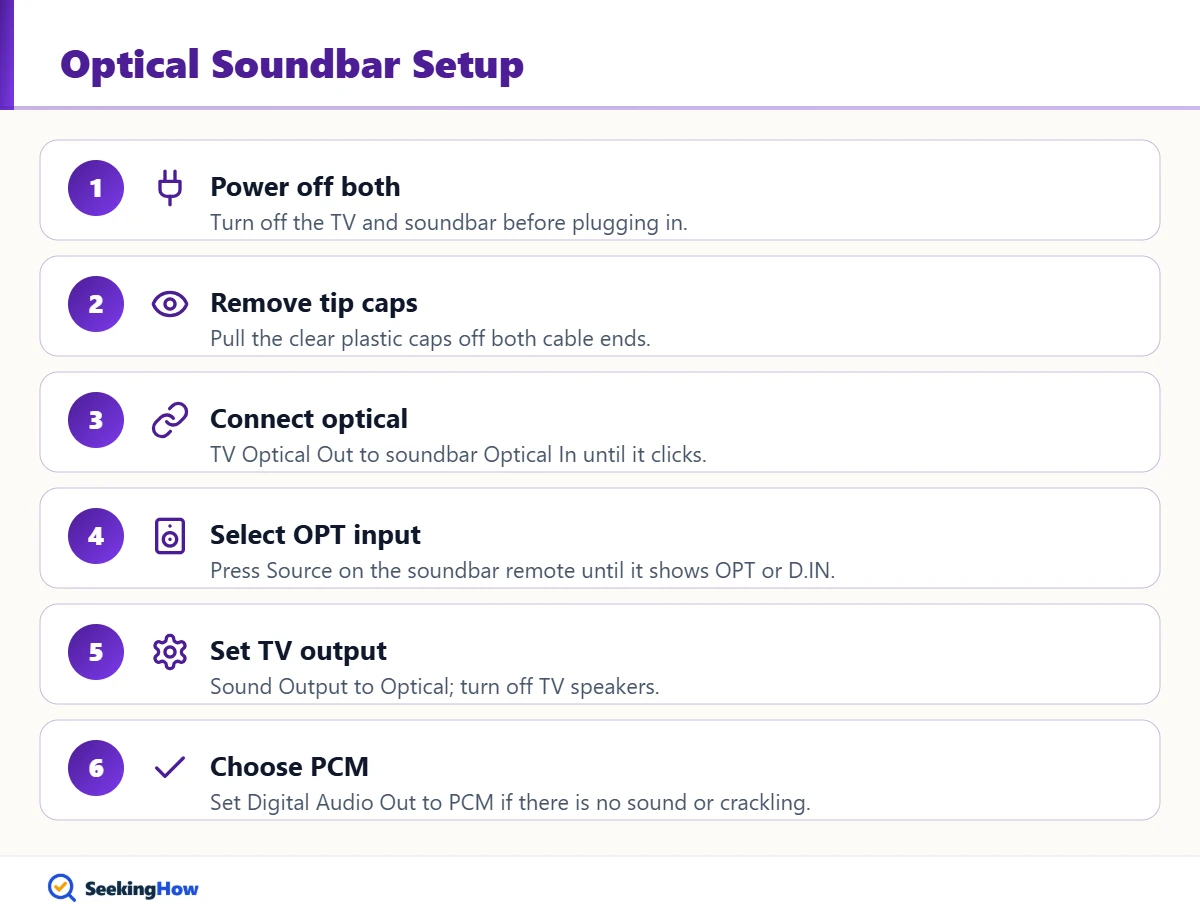
Step 1: Power Off Both Devices
Turn off the TV and soundbar before plugging anything in. This prevents a loud pop through the speakers and lets both devices detect the new connection on startup.
Step 2: Remove the Protective Caps
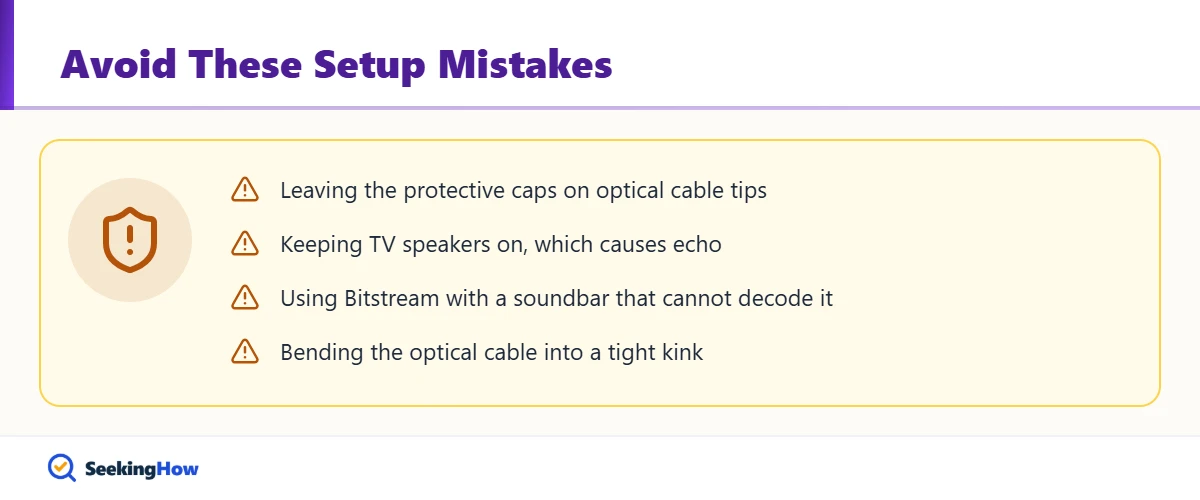
Optical cables ship with small clear plastic caps on each tip. Pull them off. Forgetting the caps is the single most common reason a new optical connection produces no sound.
Step 3: Plug In the Optical Cable
Insert one end into the TV’s Optical Out and the other into the soundbar’s Optical In (sometimes labeled “Digital In” or “OPT”). The plug is shaped to fit only one way; push until it clicks. Do not bend the cable sharply, because the glass or plastic fiber inside can crack.
Step 4: Set the Soundbar Input to Optical
Turn both devices on and press the Input or Source button on the soundbar remote until the display shows “OPT,” “Optical” or “D.IN.” The soundbar will stay silent on any other input.
Step 5: Change the TV’s Audio Output
On the TV, open Settings > Sound (or Audio) > Sound Output or Speakers and choose “Optical,” “Audio Out” or “External Speaker.” Turning off the internal TV speakers here prevents an echo from two speakers playing slightly out of sync.
Step 6: Set the Digital Audio Format
In the same menu, find “Digital Audio Out” or “Audio Format.” Choose PCM if you hear no sound or crackling, or Bitstream/Auto if your soundbar decodes Dolby Digital. In practice, PCM is the most reliable setting for budget soundbars.
Alternative Methods
Method 2: Bluetooth
Put the soundbar in pairing mode (usually a BT button held for 3 to 5 seconds), then on the TV go to Settings > Sound > Sound Output or Bluetooth Device List and select the soundbar. This only works if the TV itself supports Bluetooth audio output. Expect some delay between picture and sound, which you can sometimes correct with the TV’s AV sync or audio delay setting.
Method 3: 3.5 mm or RCA Analog Cable
Connect the TV’s headphone jack or RCA Audio Out to the soundbar’s AUX or Analog In. Select AUX on the soundbar, then raise the TV volume to about 50 to 75 percent and control loudness with the soundbar. Analog is stereo only, and some TVs mute their own speakers when the headphone jack is used.
Method 4: HDMI Pass-Through via the Soundbar
If your soundbar has an HDMI In port, plug your streaming stick, cable box or game console into the soundbar’s HDMI In, then run an HDMI cable from the soundbar’s HDMI Out to any HDMI input on the TV. The soundbar takes the audio first and passes the video along, so ARC is never needed. This is the best option for Dolby Atmos content from an external source, but audio from the TV’s built-in apps will not reach the soundbar this way.
Method 5: HDMI Audio Extractor
An HDMI audio extractor sits between your source device and the TV and splits the audio out to an optical or 3.5 mm port. Use it when neither the TV nor the soundbar has a matching port.
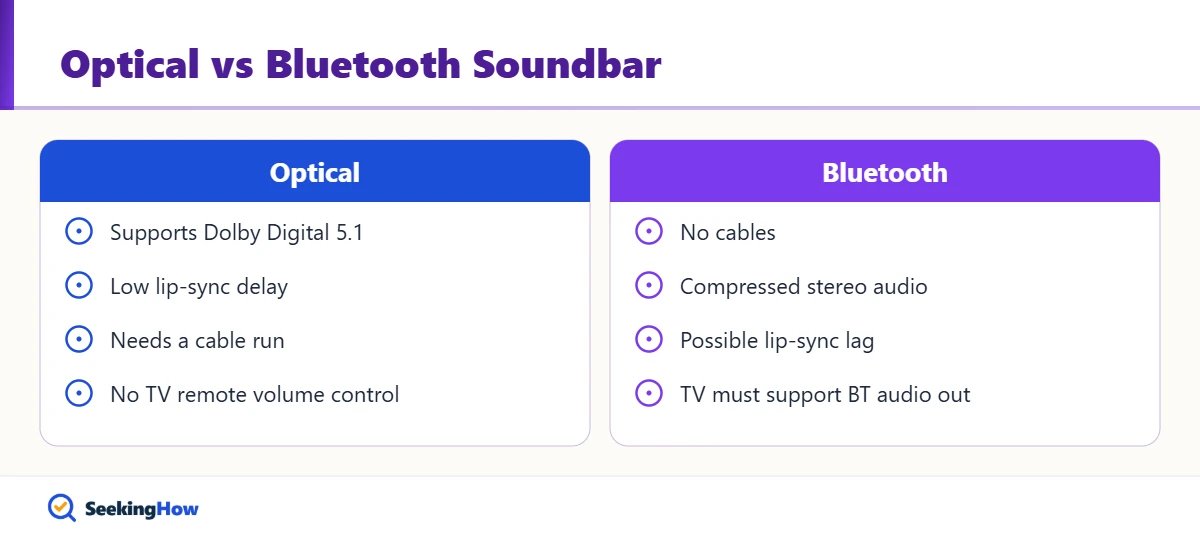
Bottom line: Use optical if your TV has it, HDMI pass-through if you mostly watch an external streaming device, and Bluetooth or analog only when neither is available.
Which Connection Should You Use?
| Method | Sound quality | Lip-sync risk | Extra cost | Best for |
|---|---|---|---|---|
| Optical (TOSLINK) | Up to Dolby Digital/DTS 5.1 | Low | Usually none | Most TVs without ARC |
| HDMI pass-through | Highest, including Atmos from the source | Low | HDMI cable | Streaming sticks and consoles |
| Bluetooth | Compressed stereo | Medium to high | None | Clean, wireless setups |
| 3.5 mm / RCA | Stereo only | Low | Inexpensive cable | Older TVs |
| Audio extractor | Depends on output | Low | Adapter cost | No matching ports |
If That Didn’t Work
Problem: No sound at all over optical. Cause: Cap still on the cable, wrong soundbar input, or TV still set to internal speakers. Fix: Check for a red glow at the cable tip, confirm the soundbar shows OPT, and select Optical as the TV’s sound output.
Problem: Sound cuts out or crackles. Cause: The TV is sending a format the soundbar cannot decode. Fix: Change the TV’s digital audio format to PCM.
Problem: Soundbar volume won’t change with the TV remote. Cause: Optical and analog do not carry volume control the way HDMI-CEC does. Fix: Use the soundbar remote, check whether the soundbar can “learn” your TV remote’s IR codes, or use a universal remote.
Problem: Voices are out of sync with lips. Cause: Bluetooth latency or processing delay. Fix: Switch to optical, or adjust the AV sync or audio delay setting on the TV or soundbar.
Problem: Streaming apps have sound but cable or antenna channels don’t. Cause: Some broadcast audio formats are not passed through optical on certain TVs. Fix: Set the format to PCM and update the TV firmware. If the soundbar has no remote handy, see how to turn on a soundbar without the remote.
Safety and When To Call a Pro
Unplug equipment before reaching behind a wall-mounted TV, and never pull a wall-mounted set forward without a second person. Call a professional installer if you need to run cables inside a wall, since in-wall cabling should be rated for in-wall use (CL2 or CL3). Contact the manufacturer if the TV’s optical port shows no red light after a factory reset, because the port may have failed.
Prevention Tips
- Keep the optical cable’s bend gentle; a tight kink is a common cause of dropouts.
- Label the soundbar input you use so others in the house don’t switch it.
- Install TV and soundbar firmware updates, which often fix audio format bugs.
- Keep TV Wi-Fi working for updates; if it shows as off, see how to fix an LG TV that says Wi-Fi is turned off.
Related Guides
- How to turn on a Sanyo soundbar without the remote
- LG TV says Wi-Fi is turned off: fixes
- How to cancel a Fubo subscription on any device
Sources
- Dolby Laboratories: audio formats and connection support (dolby.com)
- HDMI Licensing Administrator: ARC and eARC overview (hdmi.org)
- Samsung, LG and Sony TV support: sound output and digital audio out settings
Frequently Asked Questions
Can I connect a soundbar to a TV without HDMI?
Yes. A digital optical cable, Bluetooth, or a 3.5 mm or RCA analog cable all connect a soundbar without any HDMI. Optical is the best choice because it carries digital surround formats like Dolby Digital with low delay. Check that the soundbar has a matching input before buying cables.
Does optical sound as good as HDMI ARC?
Optical sounds the same as ARC for stereo and standard 5.1 Dolby Digital or DTS. The difference appears with Dolby Atmos, Dolby TrueHD and DTS:X, which optical cannot carry. For most TV shows and streaming, few listeners notice any difference.
Why is there no sound from my soundbar through optical?
No sound usually means the soundbar is on the wrong input, the TV output is still set to internal speakers, or the cable caps are still on. Also try setting the TV digital audio format to PCM, since many soundbars cannot decode every Bitstream format.
Can I use my TV remote to control the soundbar without ARC?
Usually not directly, because optical and analog cables do not carry HDMI-CEC commands. Many soundbars can learn IR codes from a TV remote, and universal remotes also work. Check the soundbar manual for a remote learning or TV remote setting.
Does any HDMI port work as ARC?
No. Only the TV HDMI port labeled ARC or eARC can send audio back to a soundbar. Other HDMI ports only accept incoming signals. If no port carries that label, use optical or route your source device through the soundbar HDMI input.
Is Bluetooth good enough for a soundbar?
Bluetooth is fine for casual viewing and music, but it compresses audio and can create a lip-sync delay. If your TV offers an AV sync or audio delay adjustment, use it to line up voices. For movies and gaming, a wired optical connection is the more reliable choice.
Will an HDMI to optical adapter work?
Yes, an HDMI audio extractor can split sound from an HDMI source to an optical or 3.5 mm output. Place it between your streaming device and the TV, then run optical to the soundbar. It will not extract audio from the TV built-in apps, only from the connected source.