
Quick Answer
To cancel Philo on Roku, press Home on the Roku remote, highlight the Philo app, press the Star (*) button, choose Manage subscription, then Cancel subscription (or Turn off auto-renew) and confirm. You can also cancel Philo at my.roku.com/subscriptions. Canceling takes about 2 minutes; deleting the Philo app does not stop billing, and Philo does not give refunds.
Key Takeaways
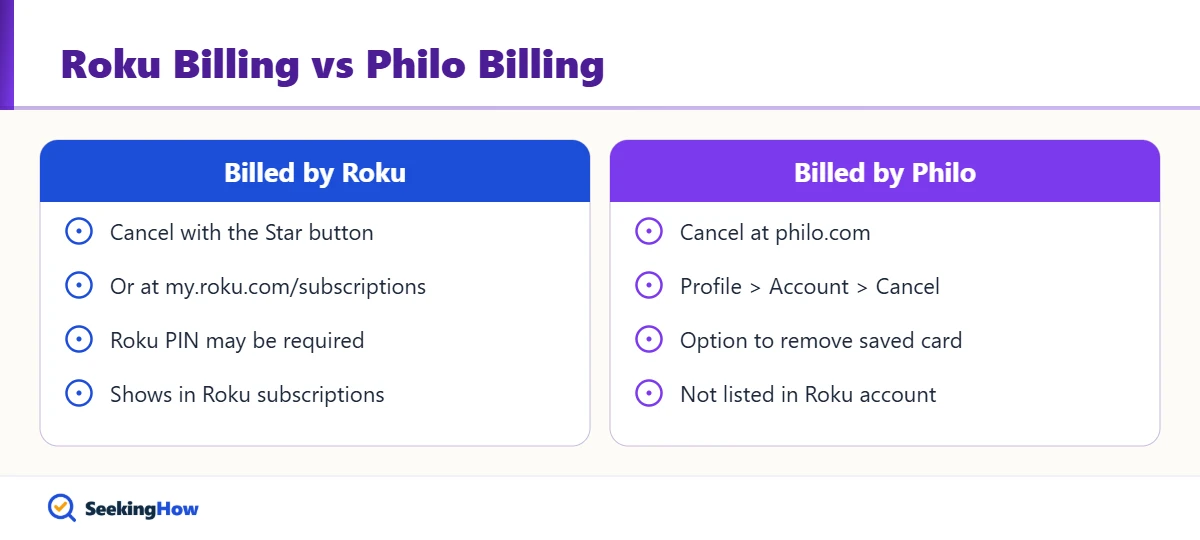
- Philo billed through Roku must be canceled through Roku, on the device or at my.roku.com/subscriptions.
- Philo billed directly must be canceled at philo.com under Account, even if you watch on a Roku.
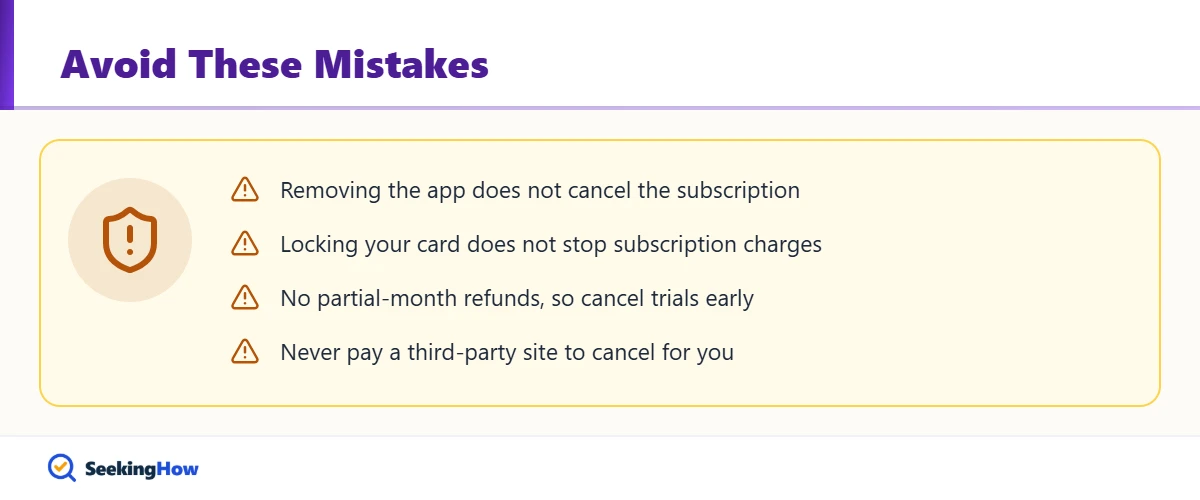
- Removing the Philo app from your Roku does not cancel the subscription.
- You keep paid Philo access until the end of the current billing cycle.
- Neither Philo nor Roku gives partial-month refunds, so cancel a free trial before it ends.
The right way to cancel Philo on Roku depends on who bills you. If you signed up inside the Philo app on your Roku and paid with your Roku account, Roku handles the cancellation; if you signed up on philo.com, Philo does. This guide shows how to tell which applies and walks through every cancellation path, as of 2026.
What You’ll Need
- Your Roku remote with the Star (*) button
- Your Roku account email and password, for my.roku.com
- Your Roku PIN, if you set one for purchases
- Your Philo login, if you are billed by Philo directly
First, Check Who Bills You for Philo
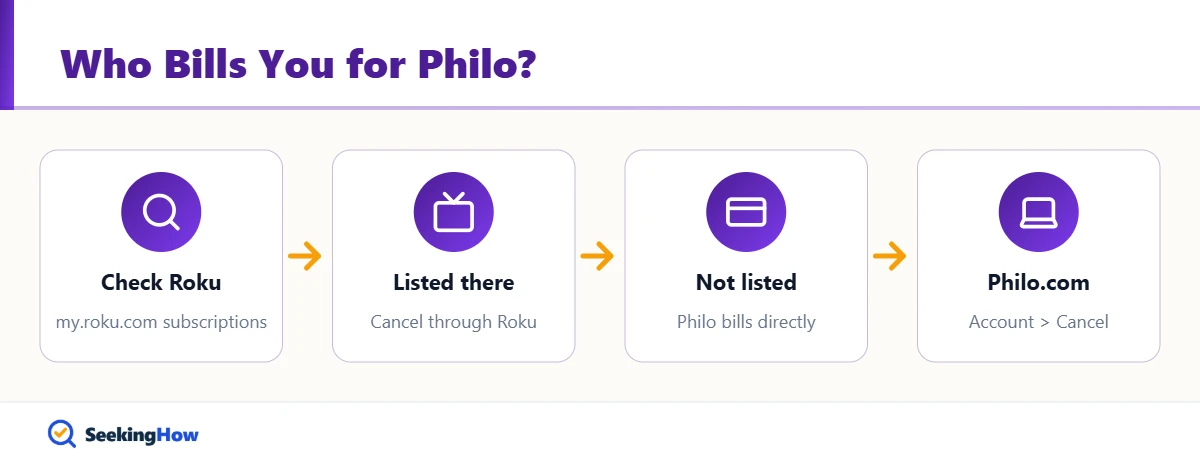
Sign in at my.roku.com and open Manage your subscriptions. If Philo appears under Active subscriptions, Roku bills you; use Method 1 or 2. If Philo is not listed, check your card statement or email receipts; a charge from Philo means you must cancel on philo.com using Method 3. Most people find the card statement description settles it in seconds.
How To Cancel Philo on Roku: Step-by-Step
Method 1: Cancel on Your Roku Device
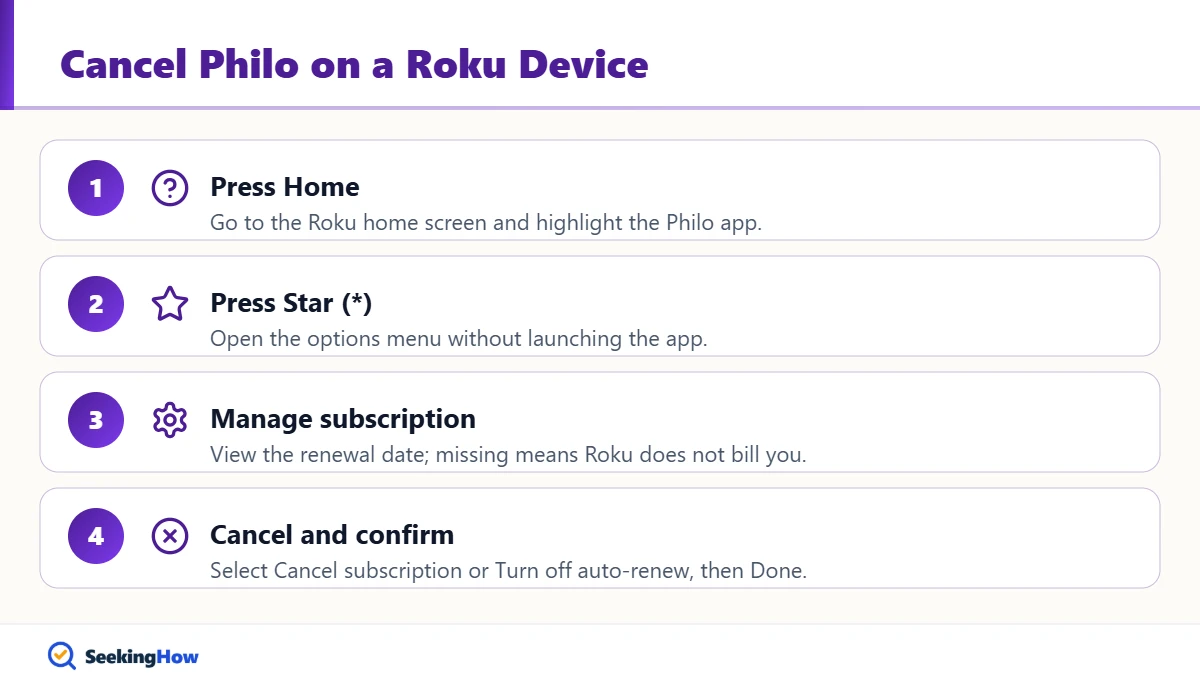
Step 1: Press Home and Highlight Philo
Press the Home button on your Roku remote and move to the Philo app tile on the home screen. If Philo isn’t visible in the shortcuts, scroll to the Apps section and highlight it there.
Step 2: Press the Star Button
Press the Star (*) button to open the options menu. Do not open the app itself; the subscription controls live in this Roku menu, not inside Philo.
Step 3: Select Manage Subscription
Choose Manage subscription to see your renewal date and price. If this option is missing, Roku is not billing you for Philo, and you need Method 3.
Step 4: Cancel and Confirm
Select Cancel subscription or Turn off auto-renew, depending on your Roku software version, then confirm and select Done. Enter your Roku PIN if prompted. Choosing Remove app instead is the most common mistake, because it deletes the app but leaves billing active.
Method 2: Cancel at my.roku.com
Step 5: Open Your Roku Subscriptions Page
On a phone or computer, sign in at my.roku.com and go to the subscriptions page (my.roku.com/subscriptions). This works even if your Roku player is broken or packed away.
Step 6: Turn Off Auto-Renew for Philo
Under Active subscriptions, select Philo, choose Manage subscription, and select Turn off auto-renew. Then refresh the page and confirm Philo shows an end date rather than a renewal date.
Method 3: Billed by Philo Directly
Step 7: Cancel at Philo.com
Sign in at philo.com, click your profile avatar, select Account, click Cancel my subscription, then Complete cancellation. Your Account page then shows your last billing day. To stop Philo from keeping your card on file, use the remove payment info option on the same page.
Bottom line: If Philo appears in your Roku subscriptions, cancel through Roku; if it doesn’t, cancel at philo.com.
Cancellation Methods Compared
| Method | Time | Works when | Needs |
|---|---|---|---|
| Roku device (Star menu) | 1 to 2 minutes | Roku bills you | Roku remote, PIN if set |
| my.roku.com | 2 minutes | Roku bills you | Roku account login |
| philo.com Account page | 2 minutes | Philo bills you directly | Philo login |
| Deleting the app | Seconds | Never cancels billing | Not recommended |
If That Didn’t Work
Problem: No Manage subscription option in the Star menu. Cause: Philo bills you directly, not Roku. Fix: Cancel at philo.com under Account.
Problem: Philo isn’t listed at my.roku.com. Cause: You’re signed in to a different Roku account, or Philo bills you. Fix: Check every Roku account email in your household, then check philo.com.
Problem: Still charged after canceling. Cause: The charge covers the billing period that started before you canceled, or a second subscription exists. Fix: Check for duplicate accounts; Philo notes that locking your card does not stop subscription charges, so cancel at the source.
Problem: Philo still plays after canceling. Cause: Access continues until the cycle ends, and Philo’s free channels remain available afterward. Fix: No action needed; confirm the end date on your account page.
Safety and When To Contact Support
Only enter your Roku or Philo password on my.roku.com or philo.com, never on a site that offers to cancel for you. Roku does not charge to activate or cancel, so a phone number or website asking for a fee is a scam. Contact Roku support for charges billed by Roku and Philo support at help.philo.com for direct charges, and contact your card issuer only if a provider won’t stop an unauthorized charge.
Prevention Tips
- Set a calendar reminder two days before a free trial ends.
- Review my.roku.com/subscriptions every few months for forgotten add-ons.
- Add a Roku PIN so others can’t start new subscriptions from the TV.
Related Guides
- How to cancel Fubo on Roku, web, Apple and Android
- LG TV says Wi-Fi is turned off: fixes
- How to turn on a Sanyo soundbar without the remote
Sources
- Philo Help Center: How to cancel your Philo subscription or trial
- Roku Support: Manage or cancel subscriptions on Roku
Frequently Asked Questions
Does deleting the Philo app on Roku cancel my subscription?
No. Removing the Philo app from a Roku only deletes it from the device. Billing continues until you turn off auto-renew in Roku or cancel at philo.com, depending on who bills you. Cancel first, then remove the app if you no longer want it.
Can I get a refund after canceling Philo?
No. Philo does not offer refunds, and Roku does not give partial-term refunds for subscriptions. Canceling stops future charges, and you keep access until the current billing period ends. To avoid any charge on a free trial, cancel before the trial end date.
How do I know if Roku or Philo bills me?
Check my.roku.com under subscriptions. If Philo appears in Active subscriptions, Roku bills you. If it does not, Philo bills you directly, which you can confirm from a philo.com receipt email or the merchant name on your card statement.
Can I cancel Philo on Roku from my phone?
Yes. Open a mobile browser, sign in at my.roku.com, go to the subscriptions page, select Philo, choose Manage subscription and turn off auto-renew. If you are billed by Philo, sign in at philo.com in the browser and cancel from the Account page.
What happens after I cancel Philo?
Paid Philo channels stay available through the end of your billing cycle. Afterward, Philo free channels remain available, and your account information is kept so you can reactivate later. You can remove your saved card from the Philo Account page.
Why is there no Manage subscription option for Philo on my Roku?
The option is missing when Roku does not bill you for Philo. That usually means you signed up on philo.com or through another platform. Sign in at philo.com and cancel from the Account page instead.
Will canceling Philo cancel my Roku account?
No. Turning off auto-renew for Philo only ends that one subscription. Your Roku account, other channel subscriptions and installed apps are not affected.